Complete a Compass evaluation to help measure performance against the eight Gatsby Benchmarks.
- Completing a Compass evaluation is simple: just answer the questions in the evaluation and the results are calculated for you.
- A Compass evaluation takes around 30 minutes to complete. You can save your progress anytime during an evaluation and come back to it later. Once you have completed an evaluation, you can copy and update results for next time.
- We recommend completing a Compass evaluation once a term to effectively track and monitor your progress against achieving the Gatsby Benchmarks.
- Please note: given variations in term dates, CEC takes formal measures of progress on 31st of December, 31st of March and 31st of July.
This Help Centre article walks you through how to complete a Compass evaluation and also covers some helpful hints and tips to help you answer the questions effectively.
You can also watch our Feature Focus : Completing a Compass evaluation - a video walkthrough, question by question, of the Compass evaluation for schools evaluation type using our Compass+ demo account.
PLEASE NOTE:
- The screenshots below, and the Feature Focus recording, both use the Compass evaluation for schools evaluation type.
- Some questions will be different, or not apply, if you use the Compass evaluation for specialist settings or the Compass evaluation for FE and ITPs.
- The core functionality - of how to complete a Compass evaluation, remains the same across all three evaluation types, whether you use Compass or Compass+.
How to complete a Compass evaluation
1. Log in to Compass using your email address and password - https://auth.careersandenterprise.co.uk/schoolshub
2. From the Welcome screen, click on 'Get Started' in the Our Compass evaluation section:

There are three parts to the Our Compass evaluation section in Compass:
What happens next
Where you start a new Compass evaluation
Previously completed or in-progress Compass evaluations
Where you can resume an in-progress evaluation, copy a previously completed evaluation and share completed evaluation results, you can also delete evaluations you no longer need.
Your Historic Compass evaluation results
You can view results only for Compass evaluations that were completed before 3rd November 2025, using the historic Compass evaluation questions.
3. When you are ready to start an evaluation, click the green button:

Please note: If your institution has sites and departments set up on Compass, after clicking 'Start the evaluation' a pop-up will display asking you if you are completing the evaluation for your whole provision or for any sites you have set up in the system. This pop-up will only display for Compass Administrators, if your institution has sites and departments set up in Compass.
4. Click 'Record evaluation responses' on the next screen:

5. The first question asks you about your learner numbers, please enter this data then click 'Save and continue' to move onto the next question:

6. Now work through each Gatsby Benchmark answering the questions as you go. You will have the option to 'Save and continue' to move onto the next question:

Or you can click 'Previous' to go back one and amend your answer to a previous question:

7. There is a handy progress bar at the top of the screen that shows you how much of the evaluation you have left to go. It also shows the number of questions you have to answer for each Gatsby Benchmark:

You can also go back to any previously completed Gatsby Benchmark section by clicking the relevant GB in the progress bar:

8. Once you have answered all the questions, just click the 'Submit' button to finish completing your evaluation:

Once you have submitted your evaluation you won't be able to go back and edit it.
9. Click the green 'Submit evaluation' button again, then you will be able to view your results:

10. Please see our Help Centre article How to view, download and share Compass evaluation results for further guidance.
Helpful hints and tips
If you need to stop an evaluation half way through and go back to it later, make sure you save your progress before exiting the evaluation.
When you're ready to continue the evaluation, go back to the Previously completed or in-progress Compass evaluations section on the Our Compass evaluations landing page.
Find the evaluation you want to continue and just click the 'Resume' button:

If text is underlined, hover your mouse over it to display the pop-up prompt, designed to help you answer the question:

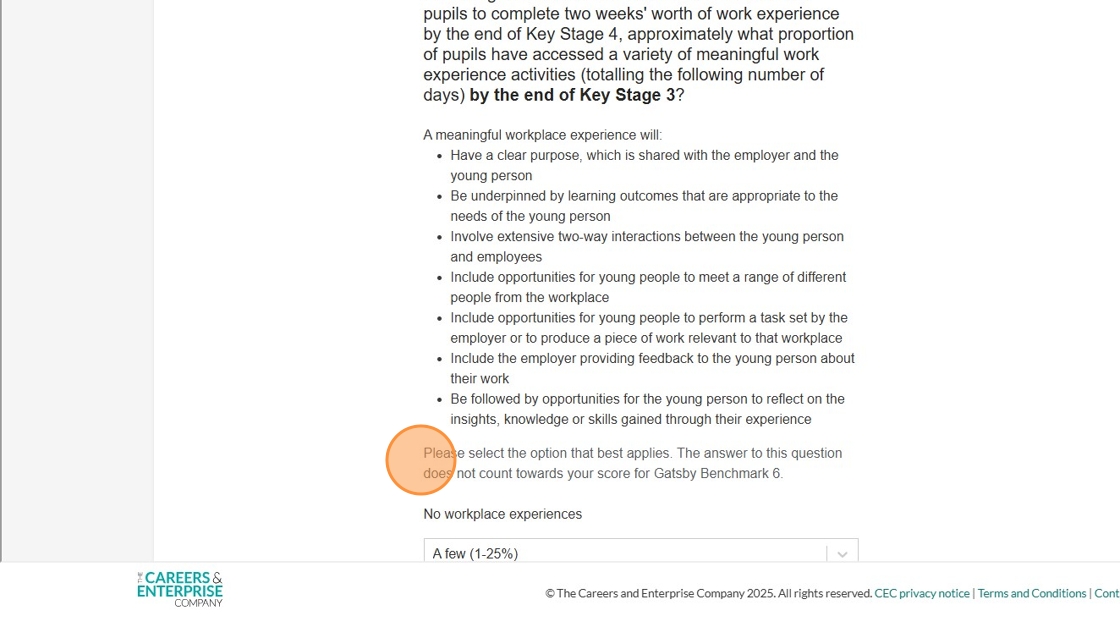
Please pay particular attention to the wording of each question, as some questions have text in bold that you will need to be aware of to answer the question properly:

As you go through the evaluation and answer the questions, you will see a range of response options.
Multiple choice - please select all that apply then click 'Save and continue' to move onto the next question:

Multiple choice questions may also look like this, again select all that apply:

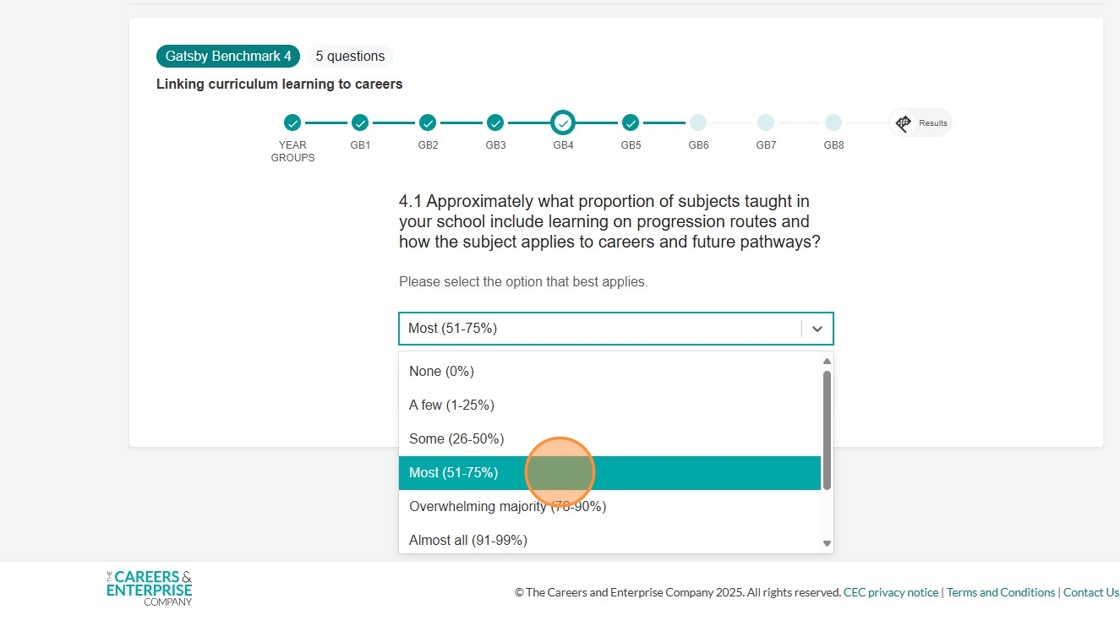
Dropdown responses - Just click the most appropriate option from the list as shown in the examples below:

Don't forget, for the Compass evaluation for schools and Compass evaluation for specialist settings, there are some questions that will not contribute towards your overall results for Gatsby Benchmarks 6 and 7, these are flagged at the bottom of the question: